

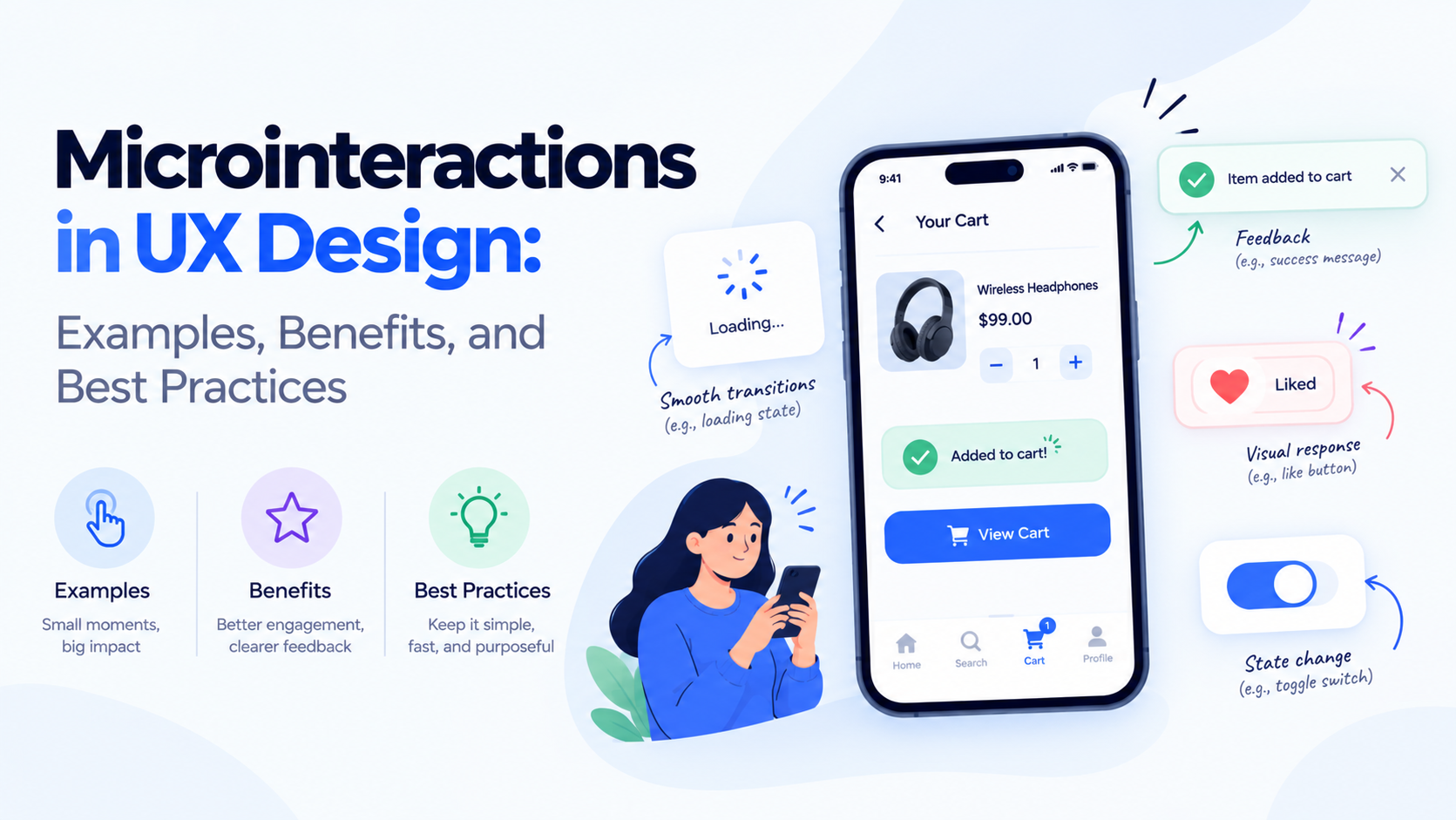
A digital product’s usability is often shaped by small details. A button that changes when clicked, a subtle animation confirming a successful payment, or a progress indicator showing that a form is being submitted can make an interface easier to understand and more satisfying to use.
These small, focused responses are known as microinteractions. Although they may occupy only a fraction of a second, they help users understand what is happening, recognize the results of their actions, and navigate digital products with greater confidence.
For UX designers and product teams, microinteractions are not simply decorative animations. When designed thoughtfully, they communicate system status, provide feedback, prevent mistakes, and make complex workflows feel more intuitive.
What Are Microinteractions in UX Design?
Microinteractions are small, contained interactions that help users complete a specific task or understand a change in the interface.
They often appear when a user performs an action, such as clicking a button, toggling a setting, submitting a form, or receiving a notification.
Common examples include:
- A button changing appearance when pressed.
- A password field displaying whether the password meets requirements.
- A shopping cart updating its item count after a product is added.
- A form displaying inline validation messages.
- A progress indicator showing that a file is uploading.
- A toggle animating when a setting is switched on or off.
An effective microinteraction provides a meaningful response without interrupting the user’s workflow.
The Four Elements of a Microinteraction
A useful way to plan microinteractions is to break them into four elements.
1. Trigger
The trigger initiates the interaction. It may be a user action, such as clicking a button, or a system event, such as receiving a notification.
For example, selecting a favorite icon triggers a response that indicates the item has been saved.
2. Rules
Rules determine what happens after the trigger. They define the behavior of the interaction, including its conditions and expected outcome.
For example, clicking a save button might add an item to a saved list only when the user is signed in.
3. Feedback
Feedback communicates the result to the user. It may be visual, textual, auditory, or haptic, depending on the context.
A color change, confirmation message, or vibration can indicate that an action has been completed.
4. Loops and Modes
Loops and modes describe how the interaction behaves over time and under different conditions.
For example, a loading indicator may remain visible until a request finishes, while a notification may disappear after a short period. A setting may also have different states depending on whether it is enabled or disabled.
Understanding these elements helps designers create interactions that are consistent, predictable, and useful.
8 Common Examples of Microinteractions
1. Button Feedback
<AsyncImage query=”modern SaaS website UI button hover pressed active states component design system” aspectRatio=”16:9″ width=”100%” />
Buttons should respond clearly when users interact with them. A subtle color, shadow, or position change can communicate that the action has been registered.
For example, a payment button might show a pressed state immediately after being selected and then display a loading indicator while the transaction is processed.
UX benefit: Helps users understand that their input has been recognized and reduces uncertainty during important actions.
2. Form Validation
Inline validation helps users correct mistakes while completing a form.
For example, a registration form might explain that a password needs a number or that an email address is incomplete.
Rather than waiting until the entire form is submitted, the interface can provide feedback at an appropriate moment.
UX benefit: Reduces avoidable errors and makes form completion easier.
3. Loading Indicators
<AsyncImage query=”minimal web application loading spinner progress bar skeleton screen UI design” aspectRatio=”16:9″ width=”100%” />
Loading indicators show that an application is processing a request or retrieving information.
A progress bar can communicate measurable progress, while a spinner may be appropriate when the duration is unknown. Skeleton screens can help users understand the structure of content that is loading.
UX benefit: Sets expectations and helps users distinguish a delay from an unresponsive interface.
4. Toggle Switches
Toggle switches are common in settings panels, notification preferences, and privacy controls.
When a user switches a setting on or off, the visual state should change clearly and consistently. If the change requires a server request, the design should also account for failure and rollback.
UX benefit: Makes the current state of a setting easier to understand.
5. Notifications and Confirmation Messages
A brief confirmation can reassure users that an action has succeeded.
Examples include “Changes saved,” “Link copied,” or “Item added to cart.”
Messages should be concise, visible, and appropriate to the importance of the action. Critical errors should not disappear before users have a chance to understand them.
UX benefit: Communicates outcomes and helps users proceed with confidence.
6. Shopping Cart Updates
In eCommerce interfaces, the cart count or product summary may update immediately after a user adds an item.
A small animation or confirmation message can reinforce the action without taking users away from the product page.
UX benefit: Provides immediate feedback and keeps the shopping journey moving.
7. Swipe and Gesture Feedback
Mobile applications frequently use swipes to dismiss notifications, navigate between screens, or reveal additional actions.
Visual feedback during a gesture helps users understand what will happen if they complete or cancel the movement.
UX benefit: Makes gesture-based navigation more discoverable and predictable.
8. Password Visibility Controls
A password visibility icon lets users switch between masked and readable text.
The control should communicate its current state clearly and remain accessible to keyboard and assistive-technology users.
UX benefit: Helps users verify their input and reduces avoidable password-entry mistakes.
Benefits of Microinteractions in UX Design
Better Usability
Microinteractions help users understand how interface elements respond to their actions. This is particularly useful when a workflow contains multiple steps or system states.
Faster Feedback
Immediate responses can reduce uncertainty. Users do not have to wonder whether a button worked or whether an application registered their input.
Fewer User Errors
Inline validation, confirmation prompts, and state indicators can help users recognize problems before they lead to more serious mistakes.
Stronger Product Identity
Consistent motion, feedback, and interaction patterns can reinforce a product’s visual identity. However, the interaction should remain useful rather than distracting.
Improved Perceived Responsiveness
A lightweight response can acknowledge a user’s action while a longer operation continues in the background. This makes the experience feel more responsive, provided the interface does not imply that an action succeeded before it actually does.
8 Best Practices for Designing Effective Microinteractions
1. Start With a Clear Purpose
Every microinteraction should communicate something useful or help the user complete a task.
Before adding an animation, ask whether it clarifies a state change, confirms an action, prevents an error, or improves navigation. If it serves no meaningful purpose, it may be unnecessary.
2. Keep Animations Subtle and Brief
Motion should support the content rather than compete with it.
Use short, appropriate transitions for routine feedback. Longer animations may be justified for meaningful transitions, but they should not unnecessarily delay the next action.
3. Maintain Consistency
Similar actions should produce similar responses throughout the product.
For example, save buttons, toggles, loading states, and confirmation messages should follow consistent visual and behavioral patterns. A design system can help teams maintain this consistency across multiple screens.
4. Provide Feedback at the Right Time
Feedback should arrive when it helps users understand the result of an action.
Immediate feedback is useful for button presses and local changes. Server-dependent operations may need a loading state followed by success or error feedback.
Avoid showing success messages before the underlying operation has completed.
5. Design for Accessibility
Do not rely exclusively on color or animation to communicate important information.
Use readable labels, adequate contrast, accessible control names, and logical keyboard behavior. Respect operating-system preferences for reduced motion and provide alternatives when animation could cause discomfort.
6. Consider Performance
Heavy animations can affect rendering performance, particularly on lower-powered mobile devices.
Prefer efficient transitions and test interactions on realistic devices and network conditions. Feedback should remain responsive even when the application is processing complex tasks.
7. Handle Errors and Unexpected States
A well-designed microinteraction should account for more than the ideal outcome.
If saving fails, explain what happened and offer an appropriate next step. If a request is still processing, keep the state clear. If an action can be repeated accidentally, prevent duplicate submissions where necessary.
8. Test With Real Users
Designers should evaluate whether people understand the interaction and recognize its result.
Usability tests can reveal animations that are too subtle, confirmation messages that are missed, or controls that behave differently from user expectations.
Analytics may also help identify repeated clicks, abandoned forms, or failed submissions, although these signals should be interpreted alongside usability research.
Common Microinteraction Design Mistakes
Adding motion for decoration: Unnecessary animation can distract users without improving the experience.
Making feedback too subtle: Users may not notice a small change, especially on mobile devices or in bright environments.
Using inconsistent interaction patterns: Different responses to similar actions make products harder to learn.
Ignoring failure states: Interactions should explain what happens when an operation does not succeed.
Delaying essential actions: Animations should not prevent users from proceeding unnecessarily.
Overlooking accessibility: Motion, color-only signals, and poorly labeled controls can make interactions difficult for some users.
Ignoring reduced-motion preferences: Users who prefer less animation should still receive clear feedback.
How to Measure Microinteraction Effectiveness
Microinteractions should be evaluated according to the problem they are intended to solve.
Useful measures include:
- Task completion rate: Whether users successfully complete the intended action.
- Form error rate: Whether validation feedback helps reduce mistakes.
- Repeated-click frequency: Whether users repeatedly click because the initial response is unclear.
- Time to completion: Whether the interaction makes the workflow easier or slower.
- Usability test observations: Whether users notice and correctly interpret feedback.
- Accessibility testing results: Whether the interaction remains usable with assistive technologies and reduced-motion settings.
Not every microinteraction needs a dedicated analytics event. In many cases, usability testing and accessibility reviews provide more meaningful evidence than raw interaction counts.
Final Thoughts
Microinteractions play an important role in making digital products feel clear, responsive, and reliable. From button feedback and form validation to loading indicators and gesture responses, these small details help users understand what is happening and what to do next.
The most effective microinteractions combine purposeful behavior, clear feedback, accessibility, and consistent design. Rather than adding motion to every component, product teams should focus on moments where a small response can remove uncertainty or make a task easier.
When designed around real user needs, microinteractions become more than visual polish. They become a practical part of a product’s overall usability.
Frequently Asked Questions
What are microinteractions in UX design?
Microinteractions are small interface responses that help users complete tasks or understand changes, such as button feedback, loading indicators, and form validation.
Why are microinteractions important?
They can improve clarity, provide immediate feedback, reduce uncertainty, and help users recognize whether an action has succeeded or failed.
What is an example of a microinteraction?
A save button that changes state and displays “Changes saved” after a successful operation is a common example.
How do microinteractions differ from animations?
Animations describe visual changes over time. Microinteractions are broader: they include triggers, behavior, feedback, and state changes, and may or may not use animation.
Should every UI element have a microinteraction?
No. Microinteractions are most useful when they clarify an action or state. Unnecessary effects can distract users and make the interface feel slower.
How can designers make microinteractions accessible?
Use clear text and control labels, avoid relying only on color or motion, support keyboard navigation, and respect reduced-motion preferences.