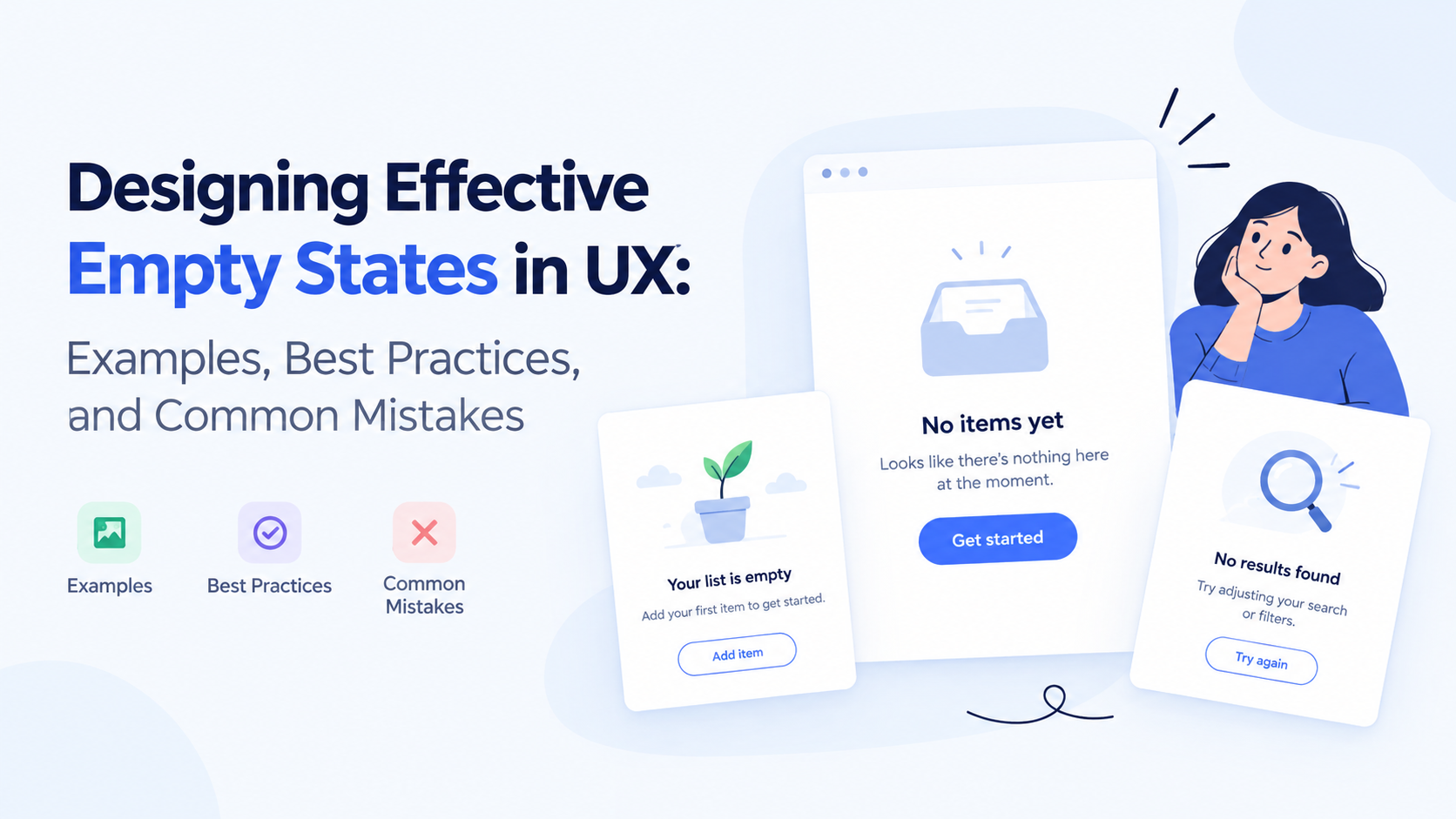
An empty screen can seem like a minor part of a digital product, but it can have a significant impact on the user experience. When users open a dashboard with no data, visit a newly created account, or search for information that does not exist, the interface needs to explain what is happening and what they can do next.
Well-designed empty states prevent confusion, guide users toward meaningful actions, and make digital products easier to understand. Poorly designed empty states, on the other hand, can leave users wondering whether a feature is broken or whether they have missed an important step.
For UX designers and product teams, empty states are an opportunity to provide context, reduce friction, and help users move forward.
What Is an Empty State in UX Design?
An empty state is an interface condition in which a screen or component has no content to display. It commonly appears in dashboards, search results, inboxes, project management tools, shopping applications, and productivity platforms.
For example, a project management application might display an empty task list when a user creates their first project. Instead of showing a blank screen, the interface can explain how to create a task and invite team members.
An effective empty state typically includes three elements:
- Context: An explanation of why the screen is empty.
- Guidance: Information that helps users understand what to do.
- Action: A relevant next step, when one is available.
The goal is not simply to fill unused space. It is to make the interface understandable and useful.
Why Empty States Matter in User Experience
1. They Help Users Understand the Interface
A completely blank screen provides little information. Users may not know whether the application is waiting for input, loading information, or experiencing an error.
A clear message explains the current situation and sets expectations.
For example, “Your saved reports will appear here” is more informative than displaying an empty table without any explanation.
2. They Guide Users Toward Their First Action
Empty states are especially important during onboarding. New users may not understand how to begin using a product or which features matter most.
A relevant call to action, such as “Create your first project,” helps users take the next step without searching through menus.
3. They Reduce Friction in Complex Products
Business applications often contain multiple dashboards, filters, and data views. Empty states can clarify why a particular view contains no results and help users recover without abandoning the workflow.
For example, an analytics dashboard could explain that no data is available for the selected date range and offer a shortcut to change the filter.
4. They Improve Product Perception
Users often interpret interface clarity as a sign of product quality. Thoughtful empty states make a product feel intentional, even when there is no content to display.
They also provide an opportunity to communicate a product’s tone of voice through helpful, concise language.
Types of Empty States in UX Design
Different empty states serve different purposes. Designers should identify the underlying situation before deciding what the interface should display.
1. First-Use Empty States
<AsyncImage query=”minimal SaaS dashboard first project empty state UI design illustration create first project button” aspectRatio=”16:9″ width=”100%” />
First-use empty states appear when a user has not yet created content or completed an initial setup step.
Example: A new workspace contains no projects.
Recommended approach: Explain the purpose of the section and provide a primary action, such as creating a project or importing existing information.
2. No-Results Empty States
<AsyncImage query=”modern application search no results found empty state UX design search query clear filters illustration” aspectRatio=”16:9″ width=”100%” />
No-results states occur when a search query or set of filters returns no matching information.
Example: A user searches an online store for a product that is unavailable or does not match the query.
Recommended approach: Confirm that no results were found, suggest adjusting the search terms, and provide a way to clear filters when relevant.
3. Completed-Task Empty States
These states appear when users have finished everything in a list or inbox.
Example: A task management application has no outstanding tasks.
Recommended approach: Communicate completion clearly. A positive message can reassure users that the empty screen is intentional rather than a problem.
4. No-Data States
No-data states appear when information has not yet been collected or connected.
Example: A business dashboard has no sales data because the account has not been connected to a data source.
Recommended approach: Explain what is missing and provide the appropriate setup or integration action.
5. Error-Related Empty States
An empty screen can also result from a failed request or an unavailable service.
Example: A message inbox cannot retrieve conversations because the network connection failed.
Recommended approach: Clearly distinguish the error from a genuinely empty inbox. Explain the issue in plain language and offer a retry action where appropriate.
8 Best Practices for Designing Effective Empty States
1. Explain Why the Screen Is Empty
Users should not have to guess what has happened.
Use specific messages that reflect the current situation. For example:
- First use: “You haven’t created any projects yet.”
- Search: “No reports match your search.”
- Completed work: “You’re all caught up.”
- Missing data: “Connect your analytics account to view performance.”
Each message addresses a different user need.
2. Provide One Clear Primary Action
An empty state should guide users toward the most relevant next step.
For a new project workspace, the primary action might be “Create project.” For a filtered table, it might be “Clear filters.”
Avoid presenting too many equally prominent buttons. Multiple competing actions can make the interface harder to understand.
3. Use Helpful, Concise UX Writing
Empty-state copy should be easy to scan and specific to the situation.
Avoid vague messages such as “Nothing here” or technical language that users may not understand.
Instead of “Data retrieval returned zero records,” use “No results found. Try changing your search or filters.”
4. Use Illustrations With a Purpose
<AsyncImage query=”clean modern empty state UI illustration for SaaS productivity dashboard friendly minimal vector design” aspectRatio=”16:9″ width=”100%” />
Illustrations can make an empty state feel more approachable, but they should support the message rather than distract from it.
A simple illustration can help communicate a concept, reinforce brand personality, or draw attention to a useful action. In data-heavy enterprise applications, a text-first approach may be more appropriate.
5. Preserve the Interface Structure
An empty state should feel like part of the existing product rather than an unrelated screen.
Maintain consistent spacing, typography, button styles, navigation, and visual hierarchy. This helps users understand where they are and how the empty state relates to the surrounding workflow.
6. Offer Recovery Options When Needed
For search results and filtered data, users should be able to recover easily.
Useful options include:
- Clearing active filters.
- Editing a search query.
- Expanding a date range.
- Connecting a missing data source.
- Retrying a failed request.
The recovery action should correspond to the actual reason the screen is empty.
7. Design for Accessibility
Empty-state content should remain understandable to users with different accessibility needs.
Use readable text, sufficient color contrast, descriptive button labels, and logical keyboard navigation. Ensure that important information is communicated through text rather than color or imagery alone.
If an empty state appears dynamically, consider whether screen-reader users need an announcement when the content changes.
8. Test Empty States With Real Users
Designers should test whether users understand why the content is missing and what action to take next.
Ask users to complete realistic tasks, such as creating their first workspace or finding a report with no matching results. Observe whether they understand the message without assistance.
Testing can reveal unclear copy, confusing actions, and situations where the interface fails to explain the next step.
Common Empty-State Design Mistakes
Using the same message everywhere: First-use screens, search results, and error states have different purposes. They should not share identical content.
Leaving the screen completely blank: Without context, users may interpret an empty screen as a defect.
Overloading the interface with actions: Too many buttons can make the next step unclear.
Using decorative illustrations without guidance: Visuals should help users understand the situation or support the primary action.
Confusing an error with an empty result: A failed request must not be presented as though no data exists.
Ignoring mobile layouts: Messages and buttons that work on desktop can become cramped or difficult to use on smaller screens.
Failing to consider accessibility: Poor contrast, unclear labels, and inaccessible dynamic updates can prevent some users from understanding the interface.
How to Measure the Effectiveness of Empty States
Empty-state design can be evaluated through usability testing and product analytics. Useful metrics include:
- Action completion rate: How many users complete the suggested next step?
- Time to first action: How long does it take users to act after encountering the empty state?
- Search recovery rate: How often do users modify a query or clear filters and find useful results?
- Setup completion rate: How many new users complete the required initial setup?
- Abandonment rate: How often do users leave the workflow after encountering the empty state?
These metrics should be interpreted in context. A completed-task state, for example, may not need a call to action at all. The appropriate measure depends on what the state is designed to accomplish.
Final Thoughts
Empty states are small interface components with an important role in the overall user experience. They explain missing content, guide users toward relevant actions, and help distinguish normal product behavior from errors.
By writing clear messages, choosing purposeful visuals, providing useful recovery options, and testing real user behavior, product teams can turn empty screens into meaningful parts of the experience.
The best empty-state design does not try to hide the absence of content. It helps users understand the situation and confidently decide what to do next.
Frequently Asked Questions
What is an empty state in UX?
An empty state is an interface condition in which a screen or component has no content to display. It should explain the situation and provide guidance or an appropriate next action.
What are the main types of empty states?
Common types include first-use states, no-results states, completed-task states, no-data states, and error-related states.
Should every empty state have a call-to-action button?
No. A first-use state may need a setup action, while a completed-task state may only need confirmation. The action should match the user’s situation.
How can designers improve empty-state UX?
Use clear messaging, a strong visual hierarchy, relevant actions, accessible components, and usability testing to help users understand the situation and move forward.
Why are empty states important in SaaS applications?
They help users navigate dashboards, reports, task lists, and other data-driven screens without confusion, especially during initial setup or when filters return no results.